Navigate
to Planner.
OR
Navigate to Planner with
Selected Project.
The Planner opens.
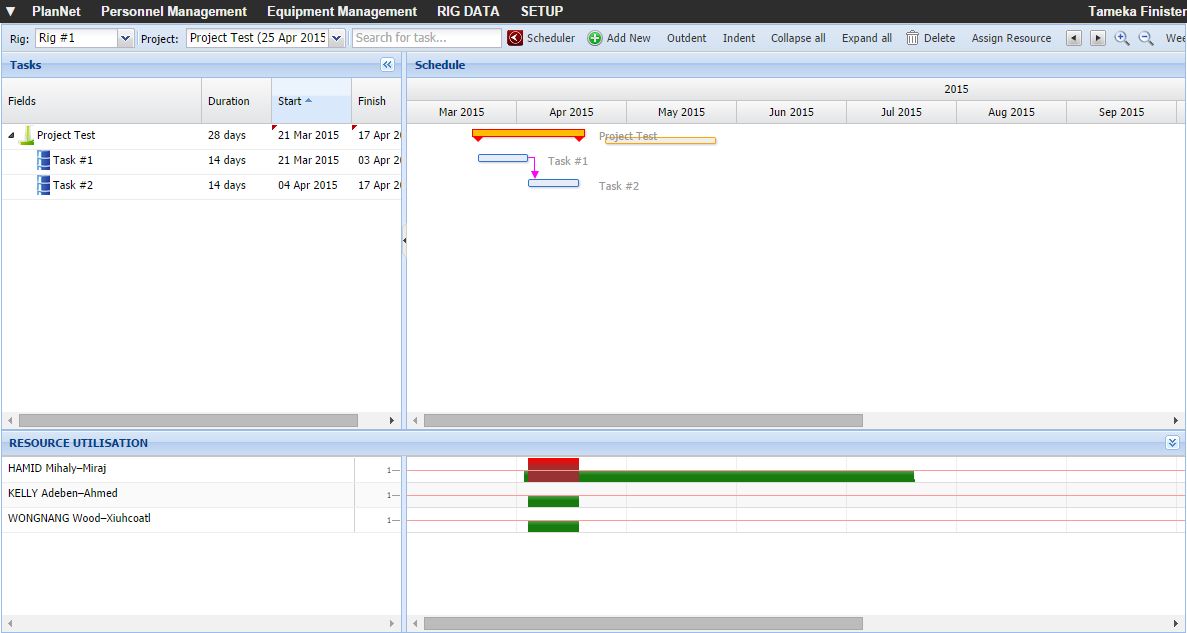
Click  .
.
OR
Right-click on an existing task in the Task or Schedule section and
select
Add  Add Below.
Note: You can also add a task
by right-clicking on another task and select Add
Add
Above.

A new task ( )
is added to the hierarchy at the end of the hierarchy.
)
is added to the hierarchy at the end of the hierarchy.
If you selected Add Add Above previously,
the task will appear before the selected task.
Note: You may need to expand
and collapse the project name for the new task to appear on the schedule.
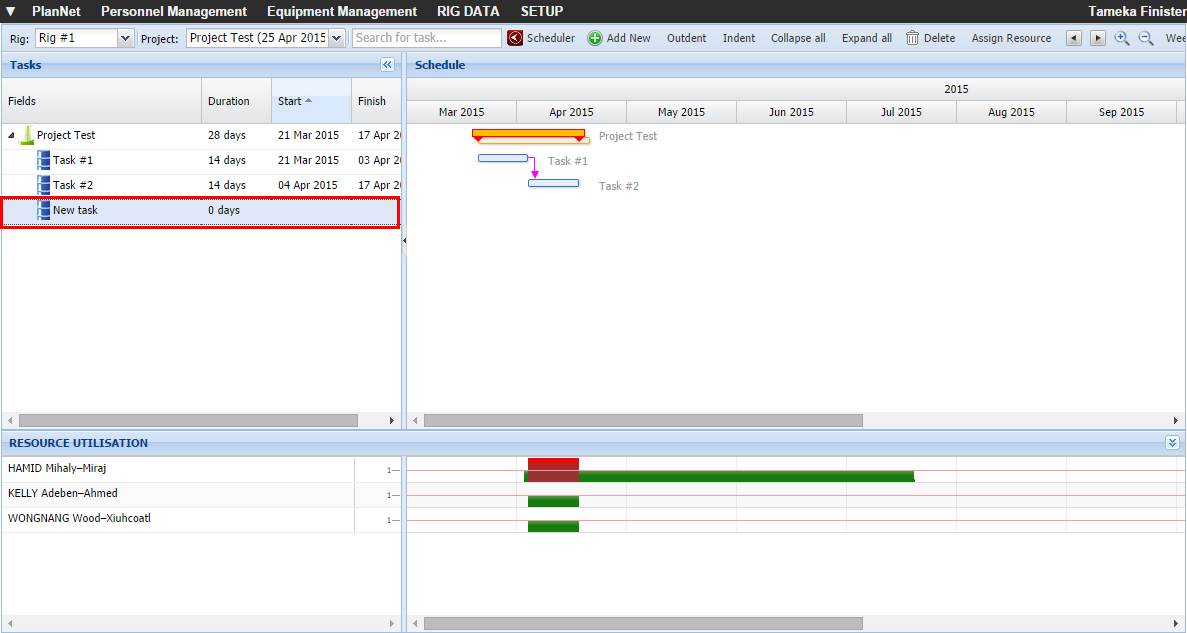
See the Add Task Details for details on changing the task.